
 by
by As of Outer Worlds 2's launch on Xbox, PlayStation, and Windows PC, the Xbox version of Obsidian's latest open-world action-RPG appears to have the lead in stability. Exactly how does its PC version fare on a performance and optimisation basis? Digital Foundry's own Alex Battaglia dives in with a launch settings guide and visual context for how to claw back huge levels of performance for little visual cost.
In short, don't even bother with "ultra" in most any of the game's settings categories.
Before getting into the usual Battaglia settings toggles (Batt-oggles?), we first want to clarify a few notable issues with the PC version at launch. The first stop on our checklist is shader compilation impact, which Outer Worlds 2 appears to take seriously by way of a lengthy shader compilation patch upon the game's first boot. Unfortunately, Obsidian also leans on asynchronous shader compilation.
This is arguably a reasonable path to managing so many virtual actors and objects that some players may never run into, but Obsidian's pre-boot pass doesn't take a number of static moments in the game's highest-level, linear path, leaving a lot of early-hours moments to sputter and stutter as much with frame time drops as with incomplete textures and assets, like in the above image captured at the game's 30-minute mark.
Additionally, there's no getting around how heavy Outer Worlds 2 is on a range of lower-end CPUs, and not just the mid-range Ryzen 5 3600. We've found that X3D-enabled CPUs escape this issue, leaving the likes of the Ryzen 7 5950 in a surprisingly low performance tier in comparison.
Your first port of call in the settings menu might be to toggle hardware ray tracing - a toggle that, in most Unreal Engine 5 games, enables the Lumen hardware ray tracing path. In optimised games, doing this with compatible GPUs costs only a few frames per second to noticeably upgrade the ray tracing model to include geometry instead of blobby SDFs, along with less noise and more stability.
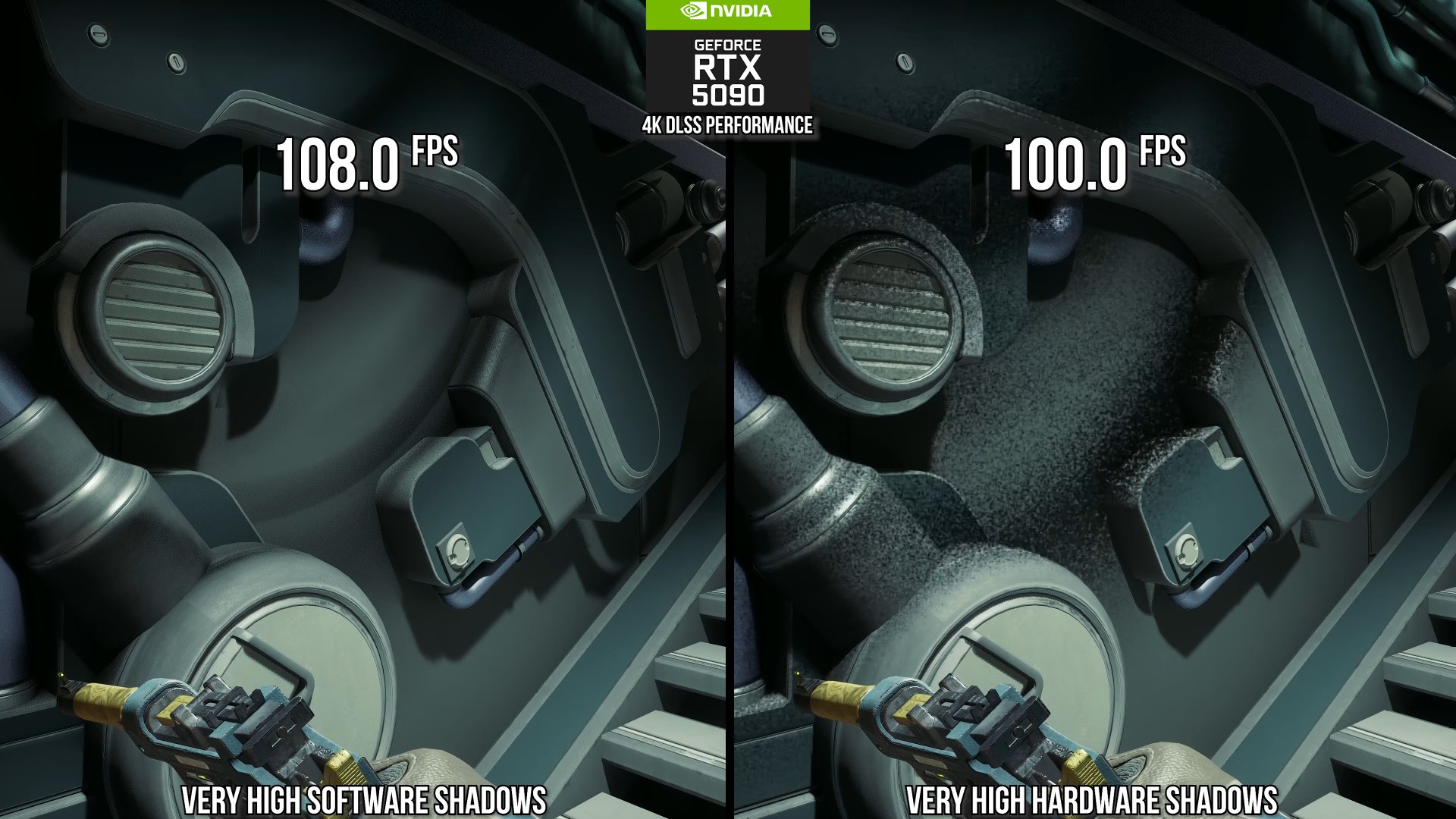
But we have to exercise caution thanks to a few major issues at Outer Worlds 2's launch. First, on systems with lower-end CPUs, enabling the hardware ray tracing option will drop frame rates even more severely (making their rough performance gulf that much worse). Second, and more damning, is the fact that the hardware ray tracing option lumps local-light shadows into the mix, and these are currently broken in Outer Worlds 2; they're noisy and stippled in the many examples we found while testing on three wholly different PC configurations. The result looks worse than virtual shadow maps - and runs worse, as well. Curiously, this setting also converts environmental details to Lumen fallback geometry, which are lacking the fine details found in the VSM version.
It's unclear whether a future patch might either fix these issues with noise and geometry, or allow users to pick-and-choose which hardware RT elements are enabled.
| Low Optimised [<RTX 4070] | High Optimized [≥RTX 4070] | |
|---|---|---|
| Hardware Ray Tracing | Off | Off |
| Screen Effects | High | High |
| View Distance | High | Very High |
| Shadows | Medium/Very High** | Medium/Very High** |
| Textures | Depends*** | Depends*** |
| Visual Effects | High | High |
| Foliage | High | Very High |
| Global Illumination | High | High |
| Reflections | High | Very High |
| Crowd Density | High | High |
As software RT is your only reasonable option until further notice, we recommend a somewhat demanding "high" setting in order to claw back up to 40 percent performance with little visible difference from "very high." Reduce this setting to "medium" for even more performance if you wish, but as Battaglia demonstrates, this comes with a cost of flickering ambient occlusion in the game's copious open-world zones.
Additional, significant performance savings can be found in reducing the quality of software reflections and directional shadows, but the latter's implementation as of launch has a peculiar hiccup. Namely, even the slightest drop in their quality from "very high," which in isolation nets improved frame rates, has a conflict with every image reconstruction technique available, causing shadows to become almost unbearably noisy. On weaker systems that rely on the likes of DLSS, FSR 3, XESS, and TSR to run, this becomes a lose-lose decision of choosing either lower frame rates or more noise.
Hence, we leave that decision to you. Additionally, we offer a shoulder-shrug about the game's texture quality slider, as it neither meaningfully boosts the game's lowest-quality textures nor proves detrimental to systems with only 8GB of VRAM. Still, our recommendation is to leave the setting at "medium" on such lower-VRAM systems, or scale texture quality to "very high" on GPUs with at least 12GB of VRAM available.
For more on the game's state on consoles at launch, head to Oliver Mackenzie's breakdown of The Outer Worlds 2 on PlayStation 5, PS5 Pro, and Xbox Series X/S.

Comments 1
Your last sentence should read
Oliver Mackenzie's breakdown of The Outer Worlds 2 on PlayStation 5, PS5 Pro, and Xbox Series X/S.
Show Comments
Leave A Comment
Hold on there, you need to login to post a comment...