
 by
by Star Wars Jedi: Survivor remains one of the most technically frustrating PC releases of this generation: a superb game shackled by deeply inconsistent performance. Even after numerous patches - which have improved matters, to be clear - one core issue has lingered: visible stutter and uneven motion in camera and character animation, even when the frame-rate graph reports a perfectly flat 60fps.
This is not the classic frame-time variance we usually diagnose. On paper, the frame-rate can look "perfect" yet in motion the game feels anything but smooth. As you run through the more open areas - Koboh being the prime example - camera motion appears jittery and inconsistent, as if each frame is moving the camera a slightly different distance. Making things worse is that the weaker your CPU, the more pronounced this visual instability becomes. The thing is, frame updates run as expected, so some players don't see it, perhaps explaining some of the polarised discourse around the game. However, once you've seen it, it's hard to unsee it.
This leads us to my recent DLSS 4.5 analysis. While exploring Unreal Engine commands, I discovered that turning off UE5's denoiser allowed DLSS to take over, sorting out the latest upscaler's issues with RT effects in Unreal titles. This is achieved with Franz Bouma's Unreal Engine Unlocker - a staple tool in the Digital Foundry arsenal. Beyond its standard features, it offers the ability to dump all console commands exposed by the game's executable and that's where I found an interesting entry: respawn.InterpolatedRendering
It's set to zero by default and its description suggests that it enables interpolated rendering - two render frames per game thread frame. Enabling it seems to halve the workload of the game thread, while interpolating camera and animation positions for the rendered frames that appear on-screen. If we had to guess, this looks like a CPU-based optimisation perhaps designed for the 60fps modes on the console versions of the game. However, it does work on PC - and its results are fascinating.
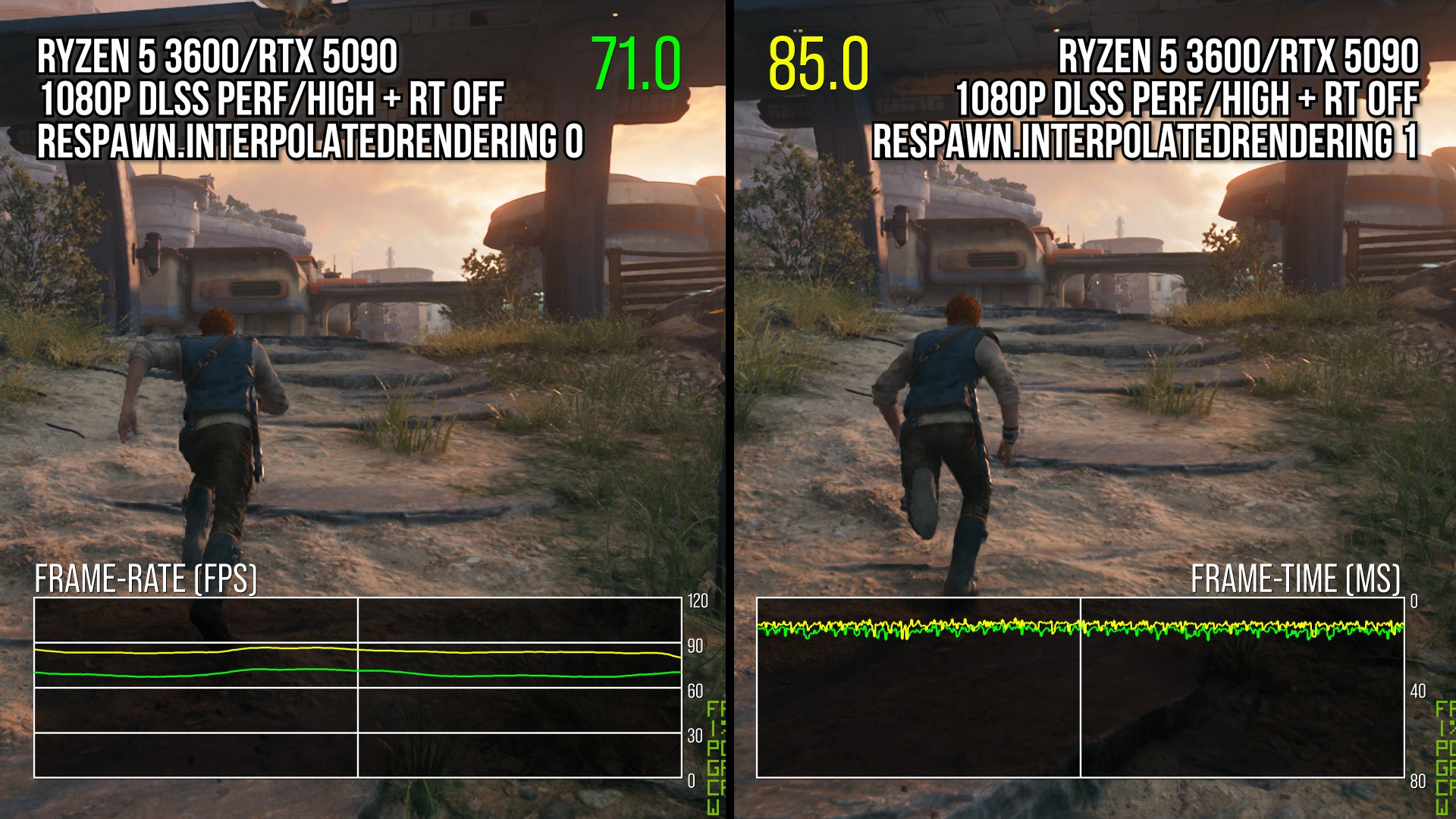
Testing on a Ryzen 5 3600 in a CPU-limited scenario, dropping resolution and using high settings, produces around a 20 percent performance uplift in heavy areas: roughly 70fps with the feature off versus 84fps with it on. On a higher-end Ryzen 7 9800X3D, the uplift was smaller at about 13 percent in CPU-limited conditions, but still measurable. More interesting than the raw numbers are the changes in motion: camera travel between frames becomes more even, greatly reducing the "random" jitter that plagues the default presentation. It’s not perfect and it won’t fix every single hitch, but it looks significantly smoother in motion.
There are trade-offs. Interpolated rendering increases latency, because more of what you see is effectively smoothed over rather than directly driven by the latest input and game-thread state. On the fully CPU-limited Ryzen 5 3600, average PC latency increased by around 18ms with the setting enabled; on a 9800X3D, the penalty was closer to 7ms. Add v-sync or a 60fps cap - for instance with triple-buffered v-sync - and that additional latency climbs by roughly 30ms on lower-end CPUs. For a single-player title like Star Wars Jedi: Survivor, that trade may well be worth it, but it won’t suit everyone.
Crucially, this is not a cure-all for all of the game's stuttering issues. It does nothing for shader compilation stutter and it cannot resolve known RT-related crashes and won't improve UI quirks or other systemic issues that continue to plague the PC version of the game. However, it is a viable mitigation for one of the game's most distracting visual artefacts: inconsistent, judder-like camera and animation in CPU-limited situation.
Right now, we've not had much luck with creating engine.ini tweaks that add the necessary respawn.InterpolatedRendering 1 mitigation. It does seem to require Unreal Engine Unlocker so you can force on the tilde command line function. Enter it in there and you're good to go. We've had promising results with this, but do feel free to give it a go on your own hardware, especially in the most CPU-heavy areas and decide for yourself if the trade for higher latency is worth it. I'll be interested to see your results.


Comments 4
Ahahahaha! That Alex and the lamp shot had me rolling. Love it.
There's a typo in the article (not in the video). The variable is respawn.InterpolatedRendering not respawn.interpolated_rendering it won't work otherwise.
@Atlash Thanks, have fixed.
I noticed I had an update come up for this game just now on Steam today on the 23rd, right after this. Was there an actual patch because I am not seeing anything.
Show Comments
Leave A Comment
Hold on there, you need to login to post a comment...