
 by
by Apple's 2024 M4 iPad Pro was an incredible tablet computer, packing a best-in-class display, chassis, and chip. But Apple continues to push out new chips and products at a rapid clip, and the successor M5 iPad Pro was released a few short months ago. We were eager to take a look at Apple's latest processor, especially as we seem to be entering a new golden era of excellent integrated graphics functionality - and thankfully, we have a bunch of challenging games to put the new chip through its paces.
I'm not actually testing the top-end iPad Pro here - I have the 256GB 11-inch model with a stripped back CPU core count and less memory. Nevertheless, the results impress against other Apple devices I've tested, like the M4 Mac Mini and the iPhone 17 Pro, packing the A19 Pro silicon.
I began by returning to Ubisoft's iOS port of Assassin's Creed Mirage, which manages to run at an evenly frame-paced 30fps with all settings maxed, with just a few short-lived blips, even on the high graphics quality preset and with 100 percent resolution scaling, which produces a crisp, panel-matching output using MetalFX with an internal resolution of 1210x682. This is letterboxed in a 16:9 window on the iPad itself. This game runs well - better than iPhone 17 Pro at similar resolution and settings, where there's a consistently lower performance level.
GRID Legends is a Digital Foundry favourite. Performance mode hits and holds a stable 60fps update, with no dips even during more intense sequences. This mode retains most of the game's visual feature set, including volumetric lighting and dynamic shadows, though screen-space reflections are absent. MetalHUD indicates a 1645x1134 resolution here, though internally it counts a bit closer to 1000p. The devs haven't availed themselves of MetalFX upscaling, instead leaning on TAA.
Graphics mode keeps its 60fps target, though with substantial dips in more intense moments. Keep in mind here that the iPad's screen, while capable of varying its refresh, doesn't use a fully content-driven VRR like we're used to seeing on PC and consoles, so these dips are very perceptible. Instead, the display chooses between a fixed number of refresh rates, and while gaming it usually stays at 120Hz. At least the graphics mode gets settings bumps over its performance mode equivalent, including SSR, and resolution appears to match its 1134p stated output.
Red Dead Redemption isn't the most taxing game around, with roots on Xbox 360 and PS3 consoles. But it's a game that had a maximum refresh of 40fps even on top-end iPhones, which was a curious choice given the relative capability of that hardware. On our M5 iPad though, those problems fade away. We can reach a full 60fps in performance mode, and I couldn't spot any drops during gameplay. Cutscenes occasionally dip a frame or two, though it's not very obvious while playing. That's not much of an accomplishment perhaps for a game of this vintage but it is worth noting given the somewhat depressed performance on phones. Internally, even with resolution scale pushed to the max, we're landing a roughly 1600x1200 render in my counts. It looks perfectly fine and plays very well, even if you'd expect a bit more from a 16 year old game.
Resident Evil 4 is up next. Visual settings are a touch degraded here, and a 450p internal res doesn't look too flattering, though it's being scaled using MetalFX to a reasonable 900p output. Performance at least locks to 30fps in my gameplay, and the game's bouts of just-in-time shader compilation don't seem to faze its performance. Like virtually every other demanding iPad game, the vast majority of needed shaders are compiled at launch or during loading screens, though just-in-time stragglers pop up from time to time.
That's perhaps not too surprising, given that the game performed similarly on the M4 iPad we tested two years ago. If you're adventurous, you can dial in higher settings with a bit of .ini file tweaking though. I just toggled the frame-rate target to 60fps using otherwise default settings and I was able to hit averages in the low-to-mid 50s in the demanding village encounter. This is a little too steep of a workload today, but for M6 or M7, perhaps a stable 60fps update will be achievable.
Finally, we have Arknights: Endfield. This free-to-play Unity RPG packs solid visuals on iPad - plus ray-traced reflections, which are evident on the ship here. I'm able to push settings to the absolute max and still log a smooth 60fps update during typical play. Internally, it counts to roughly 1728x1296, though again forgoing MetalFX in favour of TAA. Arknights leans on a roughly three minute shader burn - one of the longest I've seen on iPadOS - but doesn't suffer from any apparent compilation stutter during gameplay.
The iPad Pro M5 plows through demanding titles with few issues. These games are mobile-first ports that typically aim for capabilities well below what an iPad can supply, so our M5 machine generally delivers solid frame-rates with high visual settings. But to get a firmer sense of where the iPad lies, I've dived into a set of graphics benchmarks.
|
Benchmark |
M5 iPad Pro |
Mac Mini |
iPhone 17 Pro |
|
Steel Nomad Light |
37.5 fps (196.3%) |
30.8 fps (161.3%) |
19.1 fps (100%) |
|
Wild Life Extreme |
68.8 fps (199.4%) |
58.8 fps (170.4%) |
34.5 fps (100%) |
|
Solar Bay |
87.0 fps (186.7%) |
65.2 fps (139.9%) |
46.6 fps (100%) |
|
Solar Bay Extreme |
29.7 fps (198.0%) |
21.5 fps (143.3%) |
15.0 fps (100%) |
First up is a pair of raster 3DMark benches - Steel Nomad Light and Wild Life Extreme. Steel Nomad is a sophisticated test with modern visuals, and it flies on M5. iPhone performance is practically doubled here, while the last-gen M4 chip falls somewhere between the two more recent offerings. Wild Life Extreme represents older mobile graphics rendering tech, but it's pumped all the way to 4K resolution. The differentials look pretty similar here, with the iPad Pro again doubling the performance of the iPhone.
That makes sense, because the iPad Pro is more or less twice an iPhone architecturally. M5 has twice the memory bandwidth of A19 Pro, and 67 percent more shaders. GPU clock speeds aren't well documented, but I'd imagine typical frequencies likely exceed the iPhone as well. It's a bigger chip that's designed for Mac-caliber workloads, and comes with performance to match.
Up next we have a couple of ray tracing benches. Solar Bay is quite light and screams on M5, logging a frame-rate well above 60fps. Solar Bay Extreme is a lot tougher and its performance level is correspondingly depressed, but both remain in the same rough performance proportion with the iPhone's weaker chip.
I find the M4 a bit more interesting here. This chip slips a little from its previous standing, dropping from about 60 or 70 percent faster than A19 Pro to about 40 percent faster. It doesn't get the architectural bumps in the newer chips, including second generation dynamic caching, which makes it less efficient in these kinds of demanding ray tracing workloads.
|
Stress Tests |
M5 iPad Pro |
Mac Mini |
iPhone 17 Pro |
|
Steel Nomad Light |
|||
|
Highest Score |
5040 |
4256 |
2711 |
|
Lowest Score |
3161 |
3874 |
2073 |
|
Stability Percentage |
62.7% |
91.0% |
76.5% |
|
Solar Bay Extreme |
|||
|
Highest Score |
4241 |
3095 |
2164 |
|
Lowest Score |
2422 |
2778 |
1418 |
|
Stability Percentage |
57.1% |
89.8% |
65.5% |
The M4 gets its revenge in extended benchmark runs, however. If we run a test like Steel Nomad Light in a stress test, the M4 machine has negligible throttling, while our fanless iPad struggles. Under extended heavy load, an actively cooled M4 actually has an edge over M5. iPhone 17 Pro throttles less than the iPad as well. The iPad's relative underperformance isn't that surprising here though - it has a relatively large chip for a fanless device design. Solar Bay Extreme is a similar story. The iPad declines a bit more here, but the iPhone 17 Pro also throttles a bit harder. Again, the M4 Mac Mini is a higher performer than M5 iPad, at least past the first benchmark run or two.
It is important to stress that this is close to a worst-case gaming benchmark. In actual game testing, I didn't notice any performance decline, even in games with unlocked frame-rates. Graphics benchmarks tend to saturate the GPU quite effectively and aren't representative of typical workloads.
Beyond our usual interest in gaming tests, I thought I'd evaluate the M5 iPad in multitasking and productivity workloads. Apple has pushed hard on iPadOS multitasking in recent years, including the introduction of Stage Manager a few years ago - and the adoption of a full windowed multitasking mode in the new iPadOS 26. iPads also support full cursor and keyboard input. And you can even hook your iPad up to an external monitor and operate it in an extended display mode.
But I have mixed feelings on this push. Conventions that work well for a touch device on a small screen don't work for a pointer-based device on a large screen. Simple built-in apps like the music player are annoying to navigate with a mouse and keyboard, with unintuitive layouts that only make sense with swipes and touch input. Windows resize awkwardly and don't follow desktop operating system rendering conventions. Multi-monitor support is absent, and the device only has one port, which is quite limiting without an expensive powered Thunderbolt dock.
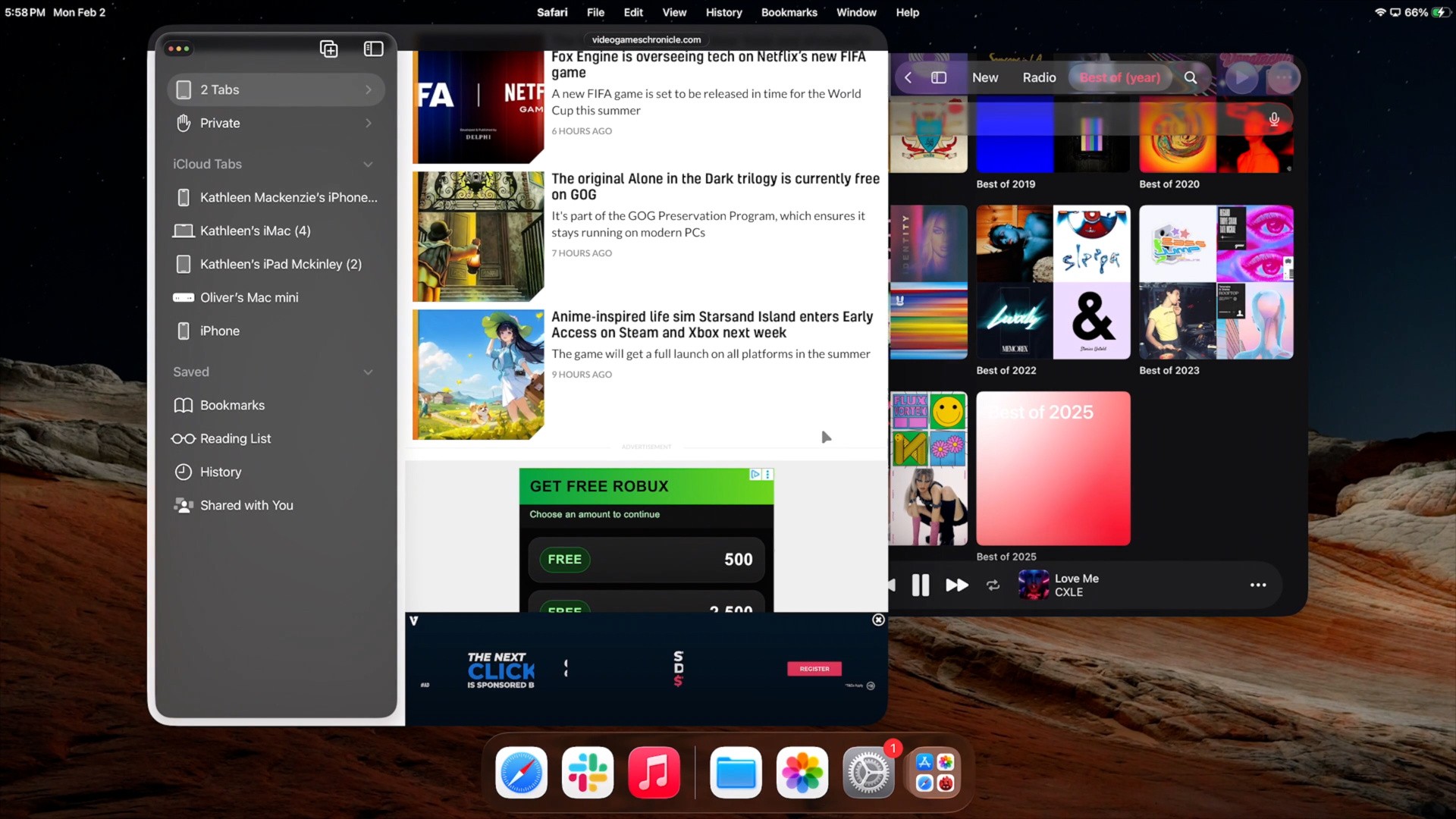
The OS and apps aren't built for precision input and large displays. I imagine most users will never see this side of the iPad, because they stick to the default full-screen windowed mode that iPads have used historically, and will make limited or no use of cursor devices and monitors.
But Apple has kind of made things worse for those users. iPad has supported Split View for a very long time. It's essentially a simple multitasking workflow to view the contents of two apps at the same time. This is well-suited for iPads, which have smaller screens, and apps tend to resize very well thanks to UIKit. iPadOS 26 has removed Split View functionality, so if you have the full screen apps multitasking mode selected you can't view two apps side by side anymore. There's similar functionality available if you want to use the windowed multitasking mode, but that mode is a poor fit for typical iPad use. Adding new features shouldn't come at the expense of core iPad capabilities.
But fiddling around with music players and web browsers didn't seem like a good enough stress test for the iPad in productivity, so I dipped into a program I know very well: Final Cut Pro. I've been employed in various journalistic outfits for the past 11 years now and Final Cut has been my primary NLE for that entire period. But that is with the Mac version, not the newer iPad release.
Initially, my experience was quite positive. Importing media is a breeze, and I was able to get my Razer Naga mouse working instantly. The trick is using a Naga variant with onboard memory so you can edit profiles on Mac and use them on the iPad. Most of my shortcuts mapped perfectly into FCP for iPad. Unfortunately, I did run into some issues. The iPad version doesn't support compound clips, which I tend to use extensively. The app has limited audio and video effects relative to the Mac version, and those effects have simplified controls. I wasn't able to dial in my usual compressor settings for instance, because all the control surfaces I use have been scrubbed off. I can't copy and paste video clips between projects, which again is a core part of my Final Cut workflow.
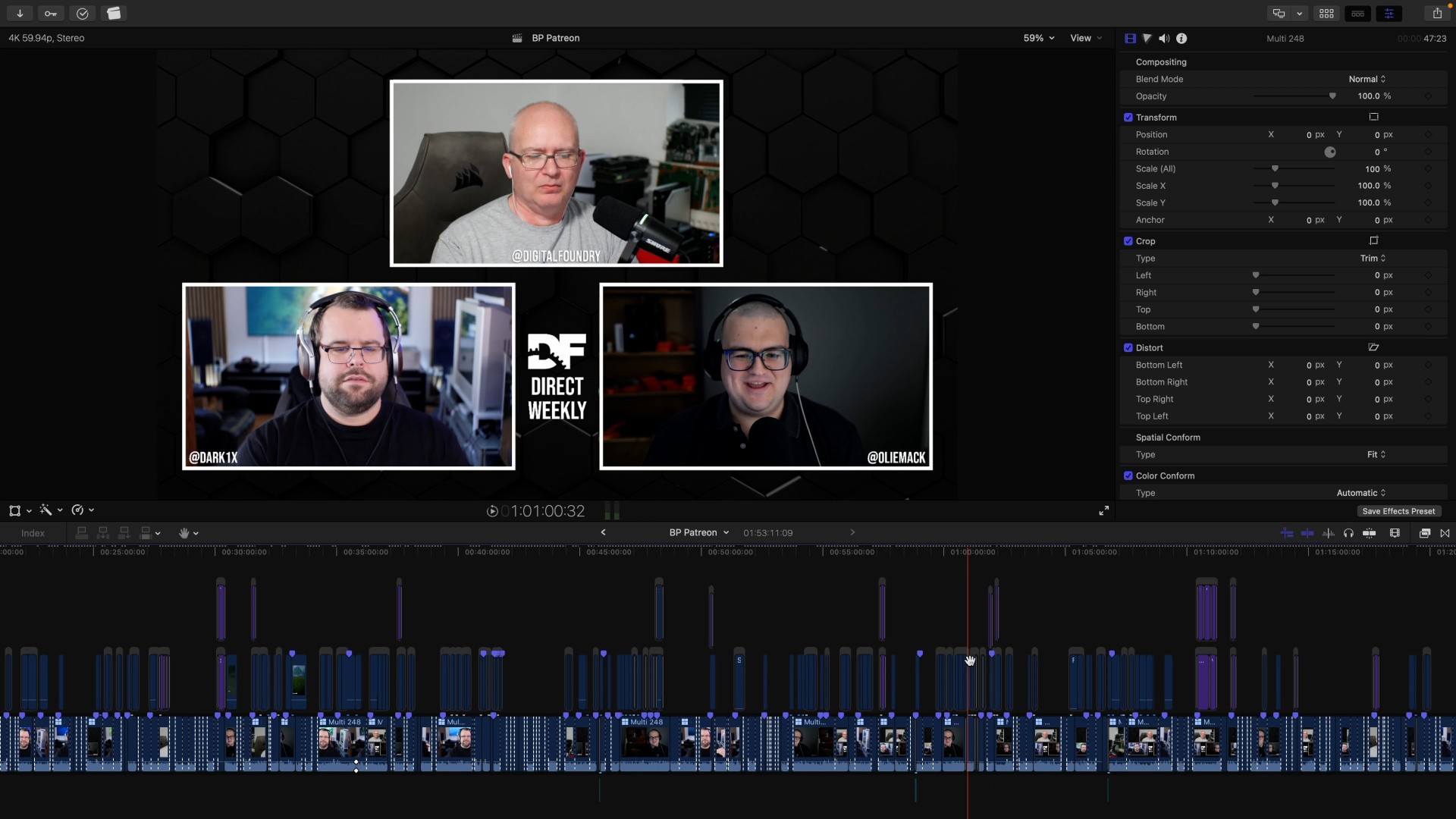
And I ran into issues with my habits during Final Cut editing. I tend to use music playback extensively while cutting video to keep myself from getting bored, triggering music play/pause using a Naga shortcut. Unfortunately, iPad doesn't support playing audio from multiple sources at once, and using my degenerate pattern of music playback inputs caused the program to freeze and need to be restarted. I don't think this is something Apple has tested for necessarily, but if you use more exotic input devices or workflows you can easily run into these kinds of issues on the iPad.
Beyond those hurdles, the app seems pretty good. Most of the interface elements have been shuffled around a bit and many are hidden beneath toggles, but the changes make sense given the iPad's smaller screen. I was able to cut basic bits of footage together with no real issues, which is the core of most video edits.
Someone who favours iPads could definitely take advantage of this program to edit professional video, just with more compromises than someone working off a Mac. It's probably the most fully featured NLE available on an iPadOS or Android tablet, and it's not especially hard to use either. Those sentiments apply to a lot of the iPad workflows I see out there: it's the most capable dedicated tablet out there and it can handle a wide range of tasks, but oftentimes a Mac makes more sense.
I produced a review of the M4 iPad Pro about a year and a half ago, and most of my findings about that device apply equally here. The M5 Pro is still a razor-thin, ultra-premium tablet with a category-leading OLED display. It's still the apex of the iPad line, and it's clearly a few steps beyond premium tablet offerings from other vendors. Processing power gets a bump with this revision, and the low-spec models get a boost from 8GB of RAM to 12GB, but it's largely the same story.
The productivity situation has changed somewhat since then though, with the introduction of full windowed multitasking and the Apple Creator Studio suite, even if it's hard to shake the feeling that Macs are a more flexible choice for most professionals. For consumption though, this feels like a best-in-class combination of hardware and software. The iPad Pro is a brilliant piece of kit that provides the best possible vehicle for the iPad experience. If you want a tablet in your life, there's nothing better.

Comments 1
Very nice, but starting at a price of 64GB DDR5 that's a bit steep, I only make around 256GB a month
Show Comments
Leave A Comment
Hold on there, you need to login to post a comment...