
 by
by
MSI's latest 34 inch ultra-wide QD-OLED monitor - the MPG 341CQR QD-OLED X36 - shows OLED technology hitting its stride in the PC space. Of course OLED (organic light emitting diode) displays are well established in the TV market, with their inky-blacks continuing to be the big draw for movies and gaming. No local dimming zones required, as seen in rival LCD technologies. No edge lighting, or mini LED back lighting either, where the drawback is a blooming effect around bright points in a dark scene. Instead an OLED's perfect black levels are hit at a precise, per pixel level.
For many, it's a huge preference, and it's telling that OLED's qualities make it a popular pick for smartphones. Even for handheld gaming, the demand is clear for OLED versions where they don't even exist yet. From the original PlayStation Vita model to the latter-day OLED version of the Nintendo Switch, it's always been a point of celebration, but the case for OLED as a computer monitor is perhaps a little more complicated.
It's no secret that PC, Linux and Mac-based tasks - like web browsing, word processing, or video editing - present extra challenges for OLED. Unlike a conventional back-lit LCD monitor, concerns of image retention, or burn in, have long hung over OLED as a potential pitfall - the root cause being that applications necessarily stay on-screen for long stretches. It's a problem to be solved, and MSI happens to have some well thought-out solutions.
The good news is that these concerns are quickly becoming a foot-note in the conversation today. Smart, AI-driven features like MSI's OLED Care 3.0 are deployed to counter most root causes of burn-in, helping to stretch out the longevity of the panel. On top of this, the 341CQR in focus today also goes a step further for PC users, by introducing the fifth generation of its tandem quantum dot OLED panels - addressing issues with text clarity. Plus, its new DarkArmor coating helps improve black levels over previous models - another step forward for its uses in gaming and productivity.
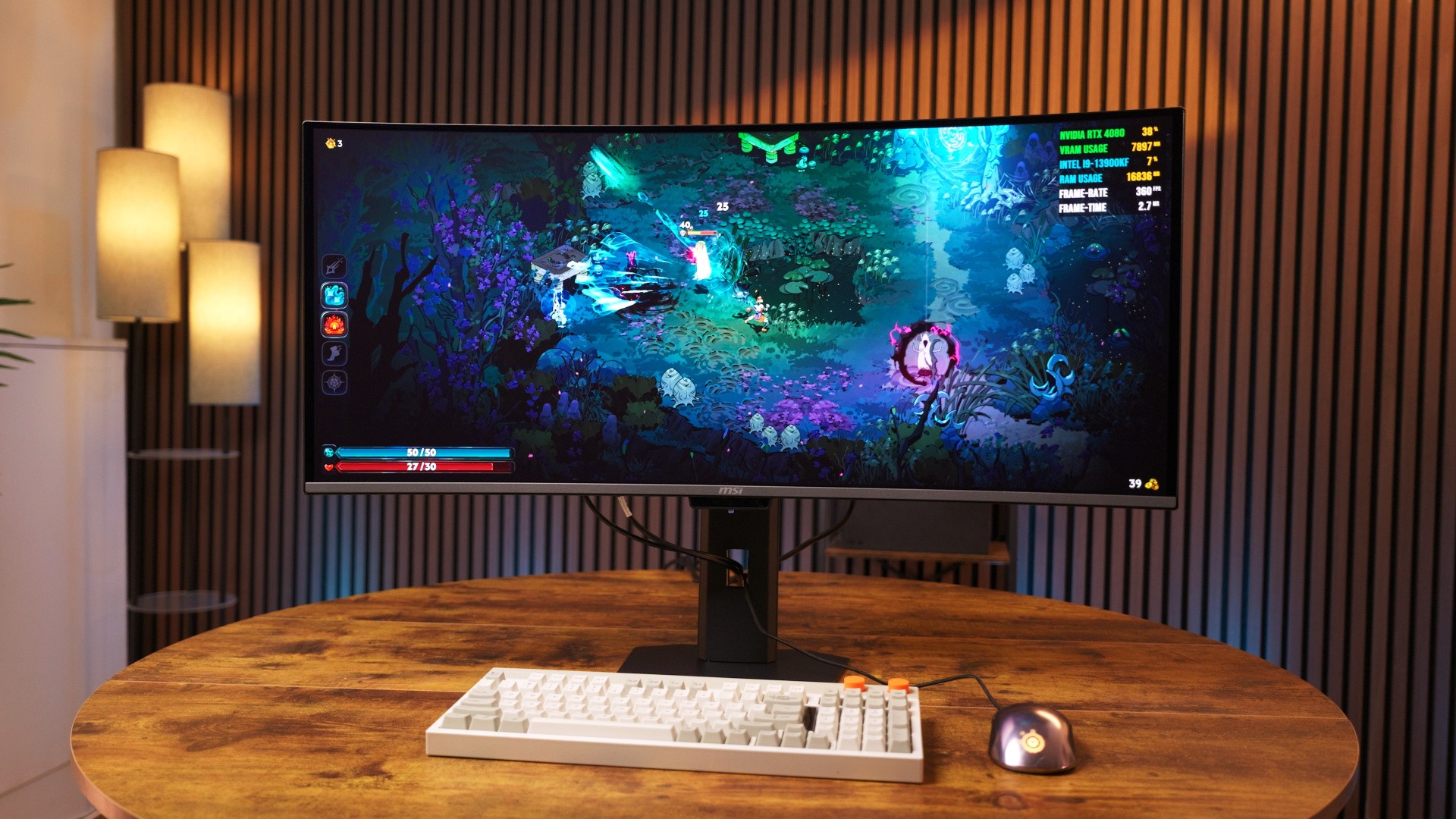
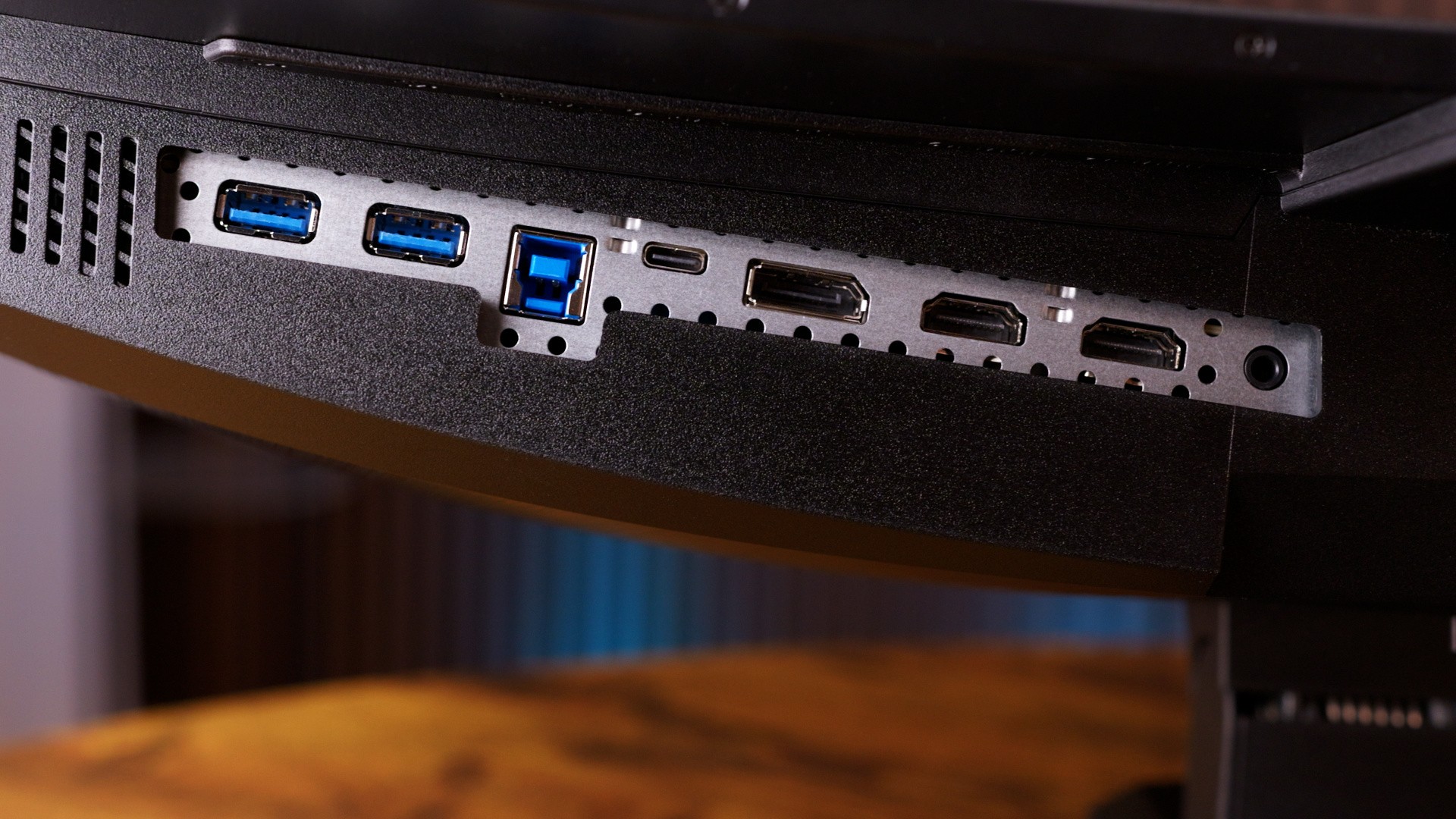
Let's talk specs. Just like its predecessor (the 341CQP), the 341CQR opts for a curved, ultra-wide format. It pushes a 3440x1440 resolution, and hits a DisplayHDR True Black 500 standard. However this time, MSI's new panel adds an extra flourish in the form of a 360Hz refresh - over double that of the 175Hz peak of its last model. To drive that combination of resolution and high refresh, you have a bevy of inputs with sufficient bandwidth. That includes two HDMI 2.1 inputs, one for DisplayPort 2.1a (with UHBR13.5 tier bandwidth), and a USB Type-C port with up to 98 watts throughput to power a connected laptop, for example.
Adding to the feature list is variable refresh rate support, in the form of HDMI 2.1 VRR, Nvidia's G-sync and AMD's Freesync Premium - meaning both console and PC are covered. All of which is an ideal combination because not every game will be able to strike a clean 360 frames per second to fill each refresh. Old classics may hit the mark, but for modern titles - say, Unreal Engine 5 releases like Marvel Rivals, Fortnite - we're increasingly going to lean into features like VRR to create a perceptually smooth result at 360Hz. Or otherwise, use frame-gen where it's supported, to generate those frames. The benefits of 360Hz speak for themselves. The motion clarity, the input latency, and even simply moving the mouse around in desktop view, it's a marked upgrade all round over 240, 120 and certainly 60Hz.
But to what extent is OLED viable for actual PC use today? Up front, it's worth stressing that wear on any display type is inevitable with enough use over the long term. The solution is burn-in prevention mechanisms, which MSI has evolved with each wave of its MSI Care initiative, from 1.0 to 3.0. The traditional three approaches apply to most OLEDs in the market today, including TVs. There's pixel shift, which periodically, though subtly, moves the entire image into a new position while in use.
This has three settings in the 341CQR's case, and it effectively keeps the details of a frame from settling at a fixed point for too long. You'll notice a subtle jump to the left or right, every now and then. Secondly, there's screen protection which dims the brightness of the entire display after a set period if there's a stretch without motion. And finally, there's panel protect - a 15 minute process that compensates for any burn-in that might occur over long periods.
This involves detecting the voltage changes on individual OLED pixels which have been used more than others, and adjusts the rest to compensate. By default, the 341CQR is set to trigger a pixel refresh cycle after 24 hours - a more generous time window than the previous 16 hours on OLED Care 2.0, thanks to the introduction of other measures.
All of this is adjustable within the monitor's OSD, or more conveniently, MSI's Gaming Intelligence app, if the monitor's linked via USB. Taking that as a baseline then, MSI Care 2.0 went a step further. On PC, Mac, Linux, there are myriad ways for that dreaded burn-in to take effect - all accounted for in the OSD. Taskbars, icons, or a split-screen view of two windows are often in a fixed place for multiple hours at a time. Even while gaming, persistent HUD overlays pose a risk, though thankfully, certain games do automatically fade those out while out of action. On PC though - especially for productivity tasks - there's just fewer breaks from fixed, static content.
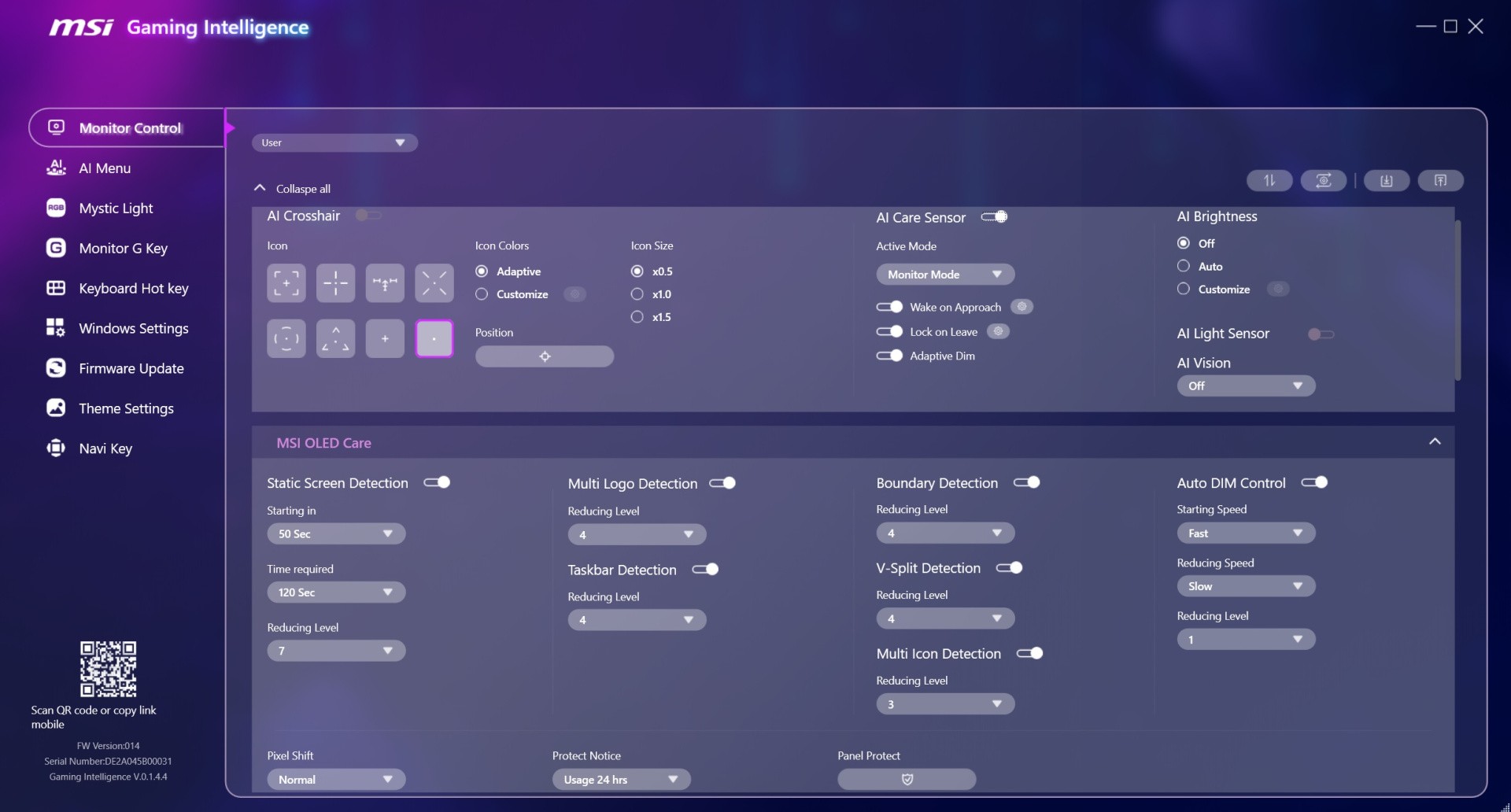
MSI's response to this is more intelligent adjustments for each of those elements. Hence, it's possible to specifically dim parts of the screen where there might be limited movement: multiple logos, icons, the task bar at the bottom, window edges, and split windows being the classic offenders. Each is adjustable separately, with a luminance reduction range from 1-4 that affects how greatly they dim. The good news is it's a subtle change - barely perceptible in use - but it does help minimise long term wear on the panel.
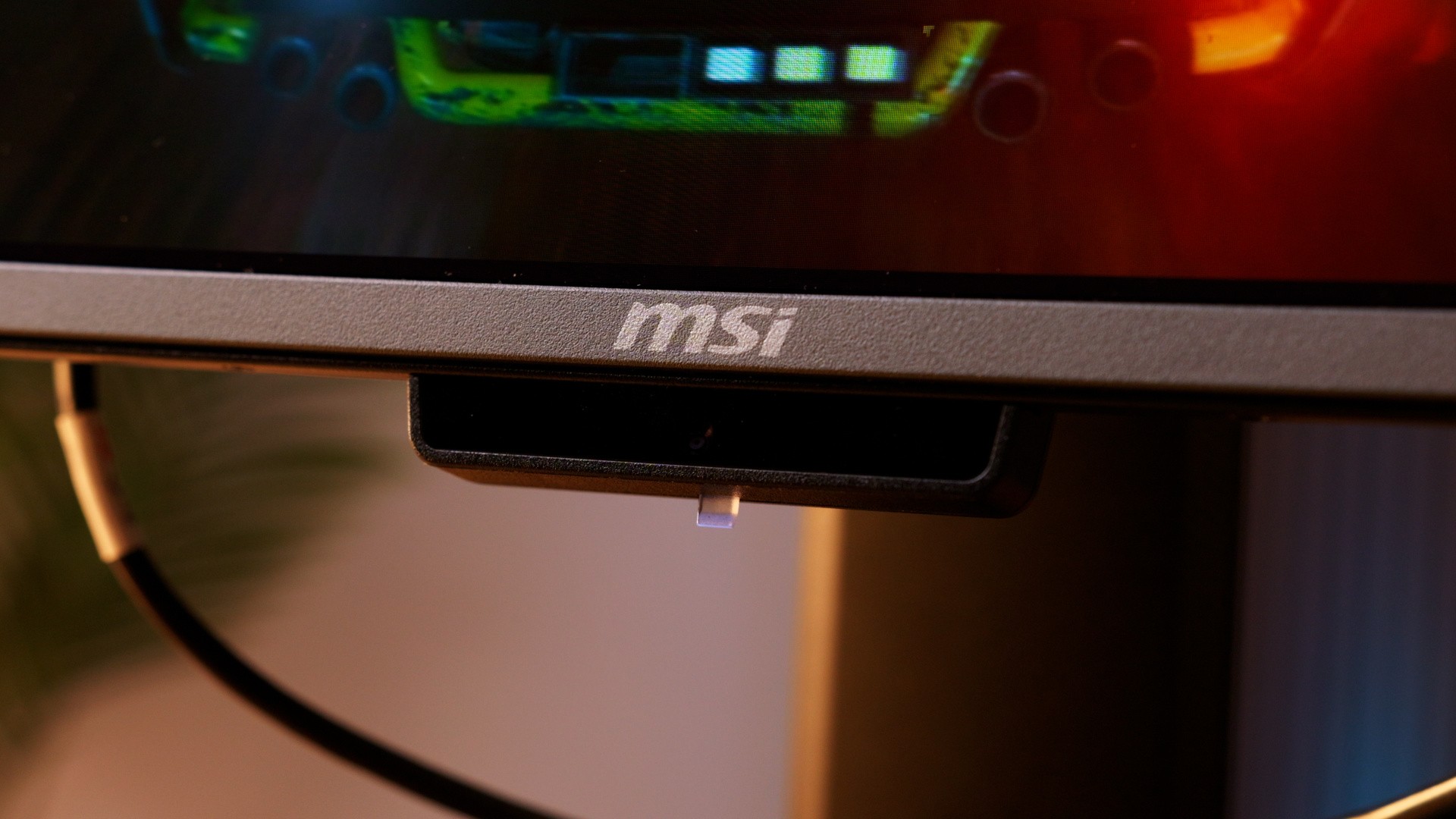
Already then, OLED care is being attacked from multiple angles, but there's an extra trick up MSI's sleeve today. With MSI Care 3.0, an "AI Care sensor" is also now built into the hardware. It's an exclusive feature, effectively embedding a sensor with a 75 degree field of view at the bottom of the display to detect user movement. There's no video recording, nor storage on the monitor - so privacy is a non-issue; it's purely sensing movement in the moment. Combined with an AI chip and a neural processing algorithm, the monitor is able to use this data to detect if a user is positioned directly in front of the display - or even making eye contact with it. It's even smart enough to counter false readings, so you could wear sunglasses, hats, masks and it still works.
Here's a handy use-case for example: the display can be set to auto dim within, say, 10 seconds of you simply looking away to have a chat with someone else. Or, look at your phone, write a note - anything like that. Return your line of sight to the monitor, and it returns to normal brightness. Next, if you step away entirely, it can be set to switch off the monitor - to a user-specified timer - and then wake up again on approach. All of the parameters for how long it waits before dimming, or switching off are tweakable in the monitor's OSD - or Windows' own Lock on Leave feature in its system mode.
It makes perfect sense too, given the 'always-on' mentality while using a PC, Mac or Linux. So, if you're wary of the health of your OLED panel, you'll know that feeling of constantly feeling the need to switch the screen on and off. MSI's AI sensor effectively takes on that job on your behalf. As an added bonus here, while the screen is on, a new multi-icon detection option is added to MSI Care 3.0. It's a variation on the other modes, this time isolating the windows screen's program icons and dimming them where needed. And again, all of these features allow MSI to extend the 'panel protect' to a more generous, less intrusive, 24 hours, up from the 16 hours of the last model.
This fifth generation QD-OLED panel has two other key upgrades. Chiefly for PC users, the move to an RGB stripe sub-pixel structure is the big one - addressing a critique of previous models. Zooming in, the alignment of red, green and blue sub pixels is now symmetrical. They're uniform strips, in effect, with the net result being much clearer text.
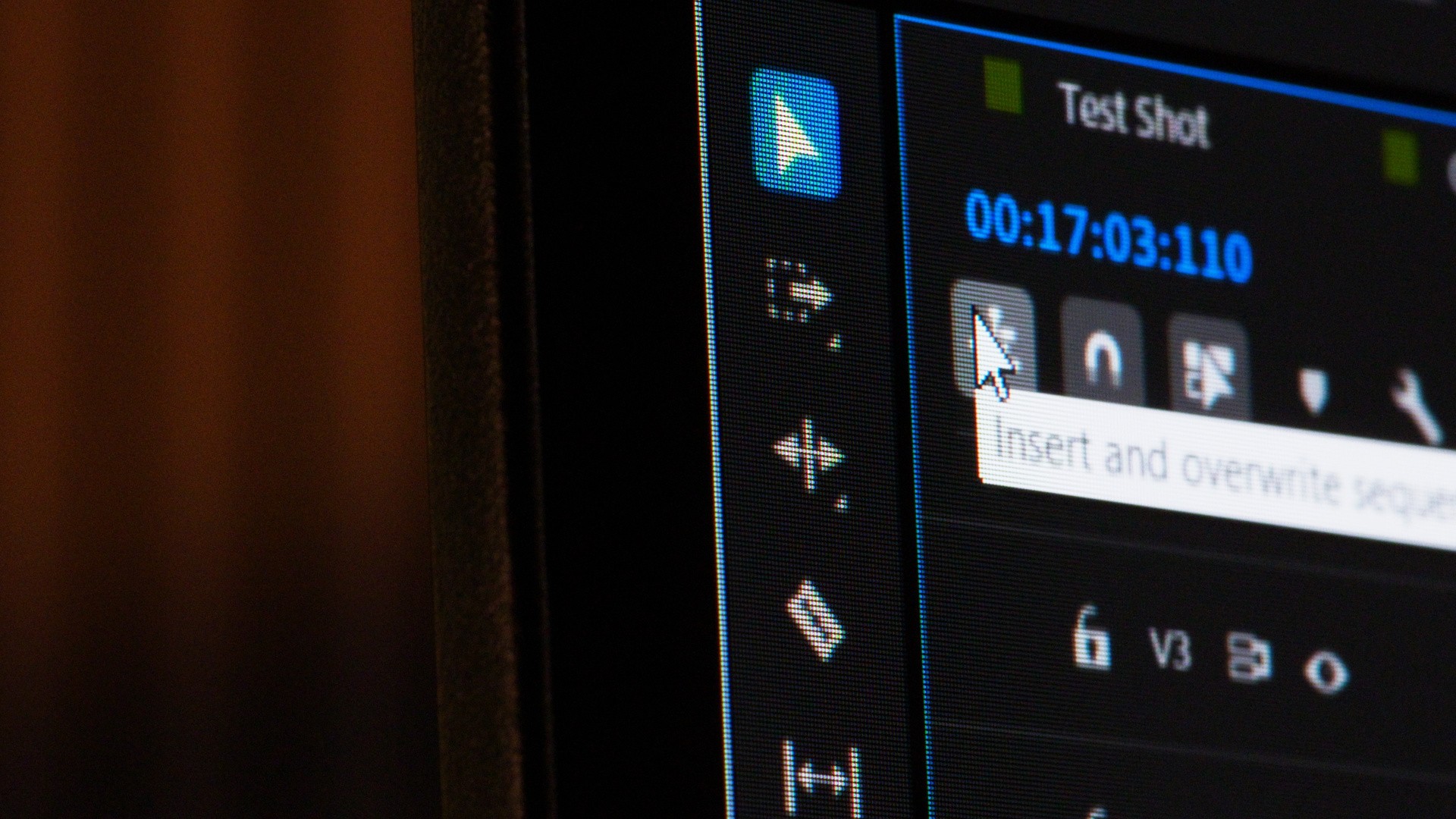
Hence, colour fringing around letters is drastically reduced in programs like Adobe Premiere, Google Chrome, word processors - you name it. It's an aspect of OLED displays that doesn't distract to any great degree on smartphones, or TVs - but all that fine detail viewed on PC needs to hold up to up-close scrutiny, so it's great to finally see QD-OLED technology meeting that demand.
The second point is another refinement on what came before: the panel coating. A new 'DarkArmor' film is applied here. Display coating is a delicate balance; you ideally want to let as much light out from the monitor, while reducing glare from external lights. With the DarkArmor approach, we're getting up to 40 percent better deeper blacks, minimising the slight purple hue of MSI's previous OLED model's coating - plus 2.5x improved scratch resistance. Great stuff.
The outlook for OLED monitors is encouraging then. It's taken some ingenuity from MSI, but the result today is that its QD OLEDs are highly practical, and usable for PC. Its OLED 3.0 Care features use every tool in the box to give it the best possible chance at longevity, and it allays a lot of concerns users may have about this particular display technology. Especially for a premium monitor, there's a comfort in having so much of this automated, too - between the sensor, the icon and taskbar dimming, the pixel shift.
More generally, as it stands today, the MPG 341CQR x36 also presents as a "best of" monitor package, with its ultra-wide design, VRR, HDR, and crucially its 360Hz refresh - it's a comprehensive feature list. Above all, for anyone looking to dip their toes into OLED displays for PC - for work or play - MSI has done the legwork to make it viable for the long term.


Comments 0
Wow, no comments yet... why not be the first?
Leave A Comment
Hold on there, you need to login to post a comment...